[![Documentation][docs-image]][docs-url]
[![Discord][discord-image]][discord-url]
[![X][x-image]][x-url]
[![Reddit][reddit-image]][reddit-url]
[![Wechat][wechat-image]][wechat-url]
[![Wechat][owl-image]][owl-url]
[![Hugging Face][huggingface-image]][huggingface-url]
[![Star][star-image]][star-url]
[![Package License][package-license-image]][package-license-url]
[中文阅读](https://github.com/camel-ai/owl/tree/main/README_zh.md) |
[Community](https://github.com/camel-ai/owl#community) |
[Installation](#️-installation) |
[Examples](https://github.com/camel-ai/owl/tree/main/owl) |
[Paper](https://arxiv.org/abs/2303.17760) |
[Citation](https://github.com/camel-ai/owl#citation) |
[Contributing](https://github.com/camel-ai/owl/graphs/contributors) |
[CAMEL-AI](https://www.camel-ai.org/)
🏆 OWL achieves 58.18 average score on GAIA benchmark and ranks 🏅️ #1 among open-source frameworks! 🏆
🦉 OWL is a cutting-edge framework for multi-agent collaboration that pushes the boundaries of task automation, built on top of the [CAMEL-AI Framework](https://github.com/camel-ai/camel).
Our vision is to revolutionize how AI agents collaborate to solve real-world tasks. By leveraging dynamic agent interactions, OWL enables more natural, efficient, and robust task automation across diverse domains.

# 📋 Table of Contents
- [📋 Table of Contents](#-table-of-contents)
- [🔥 News](#-news)
- [🎬 Demo Video](#-demo-video)
- [✨️ Core Features](#-core-features)
- [🛠️ Installation](#️-installation)
- [**Clone the Github repository**](#clone-the-github-repository)
- [**Set up Environment**](#set-up-environment)
- [**Install Dependencies**](#install-dependencies)
- [**Setup Environment Variables**](#setup-environment-variables)
- [**Running with Docker**](#running-with-docker)
- [🚀 Quick Start](#-quick-start)
- [🌐 Web Interface](#-web-interface)
- [🧪 Experiments](#-experiments)
- [⏱️ Future Plans](#️-future-plans)
- [📄 License](#-license)
- [🖊️ Cite](#️-cite)
- [🔥 Community](#-community)
- [❓ FAQ](#-faq)
- [⭐ Star History](#-star-history)
# 🔥 News
- **[2025.03.07]**: We open-source the codebase of 🦉 OWL project.
# 🎬 Demo Video
https://github.com/user-attachments/assets/2a2a825d-39ea-45c5-9ba1-f9d58efbc372
https://private-user-images.githubusercontent.com/55657767/420212194-e813fc05-136a-485f-8df3-f10d9b4e63ec.mp4
# ✨️ Core Features
- **Real-time Information Retrieval**: Leverage Wikipedia, Google Search, and other online sources for up-to-date information.
- **Multimodal Processing**: Support for handling internet or local videos, images, and audio data.
- **Browser Automation**: Utilize the Playwright framework for simulating browser interactions, including scrolling, clicking, input handling, downloading, navigation, and more.
- **Document Parsing**: Extract content from Word, Excel, PDF, and PowerPoint files, converting them into text or Markdown format.
- **Code Execution**: Write and execute Python code using interpreter.
- **Built-in Toolkits**: Access to a comprehensive set of built-in toolkits including ArxivToolkit, AudioAnalysisToolkit, CodeExecutionToolkit, DalleToolkit, DataCommonsToolkit, ExcelToolkit, GitHubToolkit, GoogleMapsToolkit, GoogleScholarToolkit, ImageAnalysisToolkit, MathToolkit, NetworkXToolkit, NotionToolkit, OpenAPIToolkit, RedditToolkit, SearchToolkit, SemanticScholarToolkit, SymPyToolkit, VideoAnalysisToolkit, WeatherToolkit, WebToolkit, and many more for specialized tasks.
# 🛠️ Installation
## Option 1: Using uv (Recommended)
```bash
# Clone github repo
git clone https://github.com/camel-ai/owl.git
# Change directory into project directory
cd owl
# Install uv if you don't have it already
pip install uv
# Create a virtual environment and install dependencies
# We support using Python 3.10, 3.11, 3.12
uv venv .venv --python=3.10
# Activate the virtual environment
# For macOS/Linux
source .venv/bin/activate
# For Windows
.venv\Scripts\activate
# Install CAMEL with all dependencies
uv pip install -e .
# Exit the virtual environment when done
deactivate
```
## Option 2: Using venv and pip
```bash
# Clone github repo
git clone https://github.com/camel-ai/owl.git
# Change directory into project directory
cd owl
# Create a virtual environment
# For Python 3.10 (also works with 3.11, 3.12)
python3.10 -m venv .venv
# Activate the virtual environment
# For macOS/Linux
source .venv/bin/activate
# For Windows
.venv\Scripts\activate
# Install from requirements.txt
pip install -r requirements.txt
```
## Option 3: Using conda
```bash
# Clone github repo
git clone https://github.com/camel-ai/owl.git
# Change directory into project directory
cd owl
# Create a conda environment
conda create -n owl python=3.10
# Activate the conda environment
conda activate owl
# Option 1: Install as a package (recommended)
pip install -e .
# Option 2: Install from requirements.txt
pip install -r requirements.txt
# Exit the conda environment when done
conda deactivate
```
## **Setup Environment Variables**
OWL requires various API keys to interact with different services. The `owl/.env_template` file contains placeholders for all necessary API keys along with links to the services where you can register for them.
### Option 1: Using a `.env` File (Recommended)
1. **Copy and Rename the Template**:
```bash
cd owl
cp .env_template .env
```
2. **Configure Your API Keys**:
Open the `.env` file in your preferred text editor and insert your API keys in the corresponding fields.
> **Note**: For the minimal example (`run_mini.py`), you only need to configure the LLM API key (e.g., `OPENAI_API_KEY`).
### Option 2: Setting Environment Variables Directly
Alternatively, you can set environment variables directly in your terminal:
- **macOS/Linux (Bash/Zsh)**:
```bash
export OPENAI_API_KEY="your-openai-api-key-here"
```
- **Windows (Command Prompt)**:
```batch
set OPENAI_API_KEY="your-openai-api-key-here"
```
- **Windows (PowerShell)**:
```powershell
$env:OPENAI_API_KEY = "your-openai-api-key-here"
```
> **Note**: Environment variables set directly in the terminal will only persist for the current session.
### Additional Models
For information on configuring other AI models beyond OpenAI, please refer to our [CAMEL models documentation](https://docs.camel-ai.org/key_modules/models.html#supported-model-platforms-in-camel).
> **Note**: For optimal performance, we strongly recommend using OpenAI models. Our experiments show that other models may result in significantly lower performance on complex tasks and benchmarks.
## **Running with Docker**
```bash
# Clone the repository
git clone https://github.com/camel-ai/owl.git
cd owl
# Configure environment variables
cp owl/.env_template owl/.env
# Edit the .env file and fill in your API keys
# Option 1: Using docker-compose directly
cd .container
docker-compose up -d
# Run OWL inside the container
docker-compose exec owl bash -c "xvfb-python run.py"
# Option 2: Build and run using the provided scripts
cd .container
chmod +x build_docker.sh
./build_docker.sh
# Run OWL inside the container
./run_in_docker.sh "your question"
```
For more detailed Docker usage instructions, including cross-platform support, optimized configurations, and troubleshooting, please refer to [DOCKER_README.md](.container/DOCKER_README_en.md).
# 🚀 Quick Start
Run the following demo case:
```bash
python owl/run.py
```
## Running with Different Models
### Additional Models
For information on configuring other AI models beyond OpenAI, please refer to our [CAMEL models documentation](https://docs.camel-ai.org/key_modules/models.html#supported-model-platforms-in-camel).
OWL supports various LLM backends. You can use the following scripts to run with different models:
```bash
# Run with Qwen model
python owl/run_qwen_zh.py
# Run with Deepseek model
python owl/run_deepseek_zh.py
# Run with other OpenAI-compatible models
python owl/run_openai_compatiable_model.py
# Run with Ollama
python owl/run_ollama.py
```
For a simpler version that only requires an LLM API key, you can try our minimal example:
```bash
python owl/run_mini.py
```
You can run OWL agent with your own task by modifying the `run.py` script:
```python
# Define your own task
question = "Task description here."
society = construct_society(question)
answer, chat_history, token_count = run_society(society)
print(f"\033[94mAnswer: {answer}\033[0m")
```
For uploading files, simply provide the file path along with your question:
```python
# Task with a local file (e.g., file path: `tmp/example.docx`)
question = "What is in the given DOCX file? Here is the file path: tmp/example.docx"
society = construct_society(question)
answer, chat_history, token_count = run_society(society)
print(f"\033[94mAnswer: {answer}\033[0m")
```
OWL will then automatically invoke document-related tools to process the file and extract the answer.
Example tasks you can try:
- "Find the latest stock price for Apple Inc."
- "Analyze the sentiment of recent tweets about climate change"
- "Help me debug this Python code: [your code here]"
- "Summarize the main points from this research paper: [paper URL]"
# 🧰 Configuring Toolkits
OWL supports various toolkits that can be customized by modifying the `tools` list in your script:
```python
# Configure toolkits
tools = [
*WebToolkit(headless=False).get_tools(), # Browser automation
*VideoAnalysisToolkit(model=models["video"]).get_tools(),
*AudioAnalysisToolkit().get_tools(), # Requires OpenAI Key
*CodeExecutionToolkit(sandbox="subprocess").get_tools(),
*ImageAnalysisToolkit(model=models["image"]).get_tools(),
SearchToolkit().search_duckduckgo,
SearchToolkit().search_google, # Comment out if unavailable
SearchToolkit().search_wiki,
*ExcelToolkit().get_tools(),
*DocumentProcessingToolkit(model=models["document"]).get_tools(),
*FileWriteToolkit(output_dir="./").get_tools(),
]
```
## Available Toolkits
Key toolkits include:
- **WebToolkit**: Browser automation
- **VideoAnalysisToolkit**: Video processing
- **AudioAnalysisToolkit**: Audio processing
- **CodeExecutionToolkit**: Python code execution
- **ImageAnalysisToolkit**: Image analysis
- **SearchToolkit**: Web searches (Google, DuckDuckGo, Wikipedia)
- **DocumentProcessingToolkit**: Document parsing (PDF, DOCX, etc.)
Additional specialized toolkits: ArxivToolkit, GitHubToolkit, GoogleMapsToolkit, MathToolkit, NetworkXToolkit, NotionToolkit, RedditToolkit, WeatherToolkit, and more. For a complete list, see the [CAMEL toolkits documentation](https://docs.camel-ai.org/key_modules/tools.html#built-in-toolkits).
## Customizing Your Configuration
To customize available tools:
```python
# 1. Import toolkits
from camel.toolkits import WebToolkit, SearchToolkit, CodeExecutionToolkit
# 2. Configure tools list
tools = [
*WebToolkit(headless=True).get_tools(),
SearchToolkit().search_wiki,
*CodeExecutionToolkit(sandbox="subprocess").get_tools(),
]
# 3. Pass to assistant agent
assistant_agent_kwargs = {"model": models["assistant"], "tools": tools}
```
Selecting only necessary toolkits optimizes performance and reduces resource usage.
# 🌐 Web Interface
OWL now includes a web-based user interface that makes it easier to interact with the system. To start the web interface, run:
```bash
python run_app.py
```
The web interface provides the following features:
- **Easy Model Selection**: Choose between different models (OpenAI, Qwen, DeepSeek, etc.)
- **Environment Variable Management**: Configure your API keys and other settings directly from the UI
- **Interactive Chat Interface**: Communicate with OWL agents through a user-friendly interface
- **Task History**: View the history and results of your interactions
The web interface is built using Gradio and runs locally on your machine. No data is sent to external servers beyond what's required for the model API calls you configure.
# 🧪 Experiments
To reproduce OWL's GAIA benchmark score of 58.18:
1. Switch to the `gaia58.18` branch:
```bash
git checkout gaia58.18
```
1. Run the evaluation script:
```bash
python run_gaia_roleplaying.py
```
# ⏱️ Future Plans
- [ ] Write a technical blog post detailing our exploration and insights in multi-agent collaboration in real-world tasks.
- [ ] Enhance the toolkit ecosystem with more specialized tools for domain-specific tasks.
- [ ] Develop more sophisticated agent interaction patterns and communication protocols
# 📄 License
The source code is licensed under Apache 2.0.
# 🖊️ Cite
If you find this repo useful, please cite:
```
@misc{owl2025,
title = {OWL: Optimized Workforce Learning for General Multi-Agent Assistance in Real-World Task Automation},
author = {{CAMEL-AI.org}},
howpublished = {\url{https://github.com/camel-ai/owl}},
note = {Accessed: 2025-03-07},
year = {2025}
}
```
# 🔥 Community
Join us for further discussions!

# ❓ FAQ
**Q: Why don't I see Chrome running locally after starting the example script?**
A: If OWL determines that a task can be completed using non-browser tools (such as search or code execution), the browser will not be launched. The browser window will only appear when OWL determines that browser-based interaction is necessary.
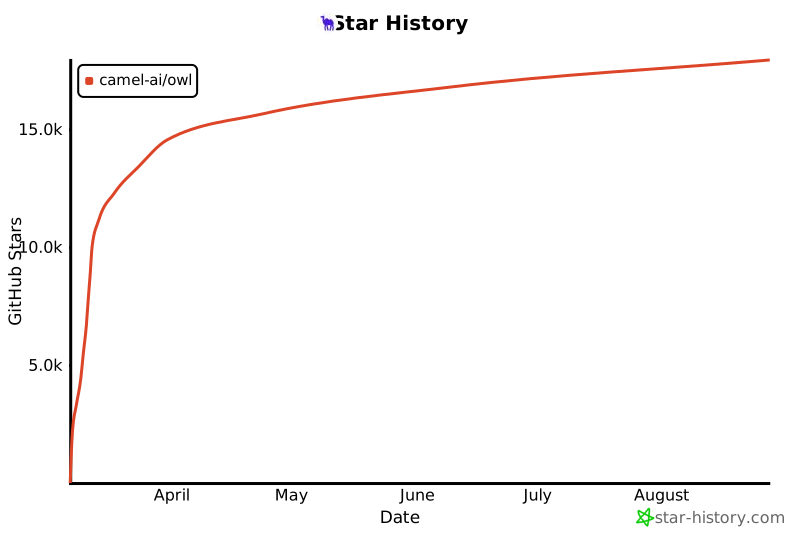
# ⭐ Star History
[](https://star-history.com/#camel-ai/owl&Date)
[docs-image]: https://img.shields.io/badge/Documentation-EB3ECC
[docs-url]: https://camel-ai.github.io/camel/index.html
[star-image]: https://img.shields.io/github/stars/camel-ai/owl?label=stars&logo=github&color=brightgreen
[star-url]: https://github.com/camel-ai/owl/stargazers
[package-license-image]: https://img.shields.io/badge/License-Apache_2.0-blue.svg
[package-license-url]: https://github.com/camel-ai/owl/blob/main/licenses/LICENSE
[colab-url]: https://colab.research.google.com/drive/1AzP33O8rnMW__7ocWJhVBXjKziJXPtim?usp=sharing
[colab-image]: https://colab.research.google.com/assets/colab-badge.svg
[huggingface-url]: https://huggingface.co/camel-ai
[huggingface-image]: https://img.shields.io/badge/%F0%9F%A4%97%20Hugging%20Face-CAMEL--AI-ffc107?color=ffc107&logoColor=white
[discord-url]: https://discord.camel-ai.org/
[discord-image]: https://img.shields.io/discord/1082486657678311454?logo=discord&labelColor=%20%235462eb&logoColor=%20%23f5f5f5&color=%20%235462eb
[wechat-url]: https://ghli.org/camel/wechat.png
[wechat-image]: https://img.shields.io/badge/WeChat-CamelAIOrg-brightgreen?logo=wechat&logoColor=white
[x-url]: https://x.com/CamelAIOrg
[x-image]: https://img.shields.io/twitter/follow/CamelAIOrg?style=social
[twitter-image]: https://img.shields.io/twitter/follow/CamelAIOrg?style=social&color=brightgreen&logo=twitter
[reddit-url]: https://www.reddit.com/r/CamelAI/
[reddit-image]: https://img.shields.io/reddit/subreddit-subscribers/CamelAI?style=plastic&logo=reddit&label=r%2FCAMEL&labelColor=white
[ambassador-url]: https://www.camel-ai.org/community
[owl-url]: ./assets/qr_code.jpg
[owl-image]: https://img.shields.io/badge/WeChat-OWLProject-brightgreen?logo=wechat&logoColor=white